
You can bring your old emails from Gmail, Outlook or your old host into your new HostBring address. Our team can do it for you, or you can copy them yourself. Either way, do it before you switch your MX record, so nothing arrives in the wrong place while you copy.
Let our team do it (PKR 500 per mailbox)
We copy all your emails and folders (not contacts or calendars). Your old mailbox stays as it is. Up to 5 GB per mailbox; bigger ones get a quote.
- In the portal, open Email, then Email addresses.
- Under your addresses, find Bring your old emails and click Move my old emails.
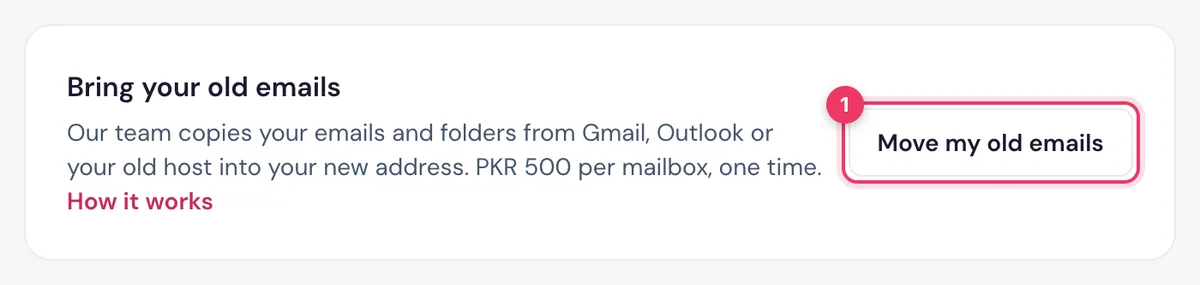
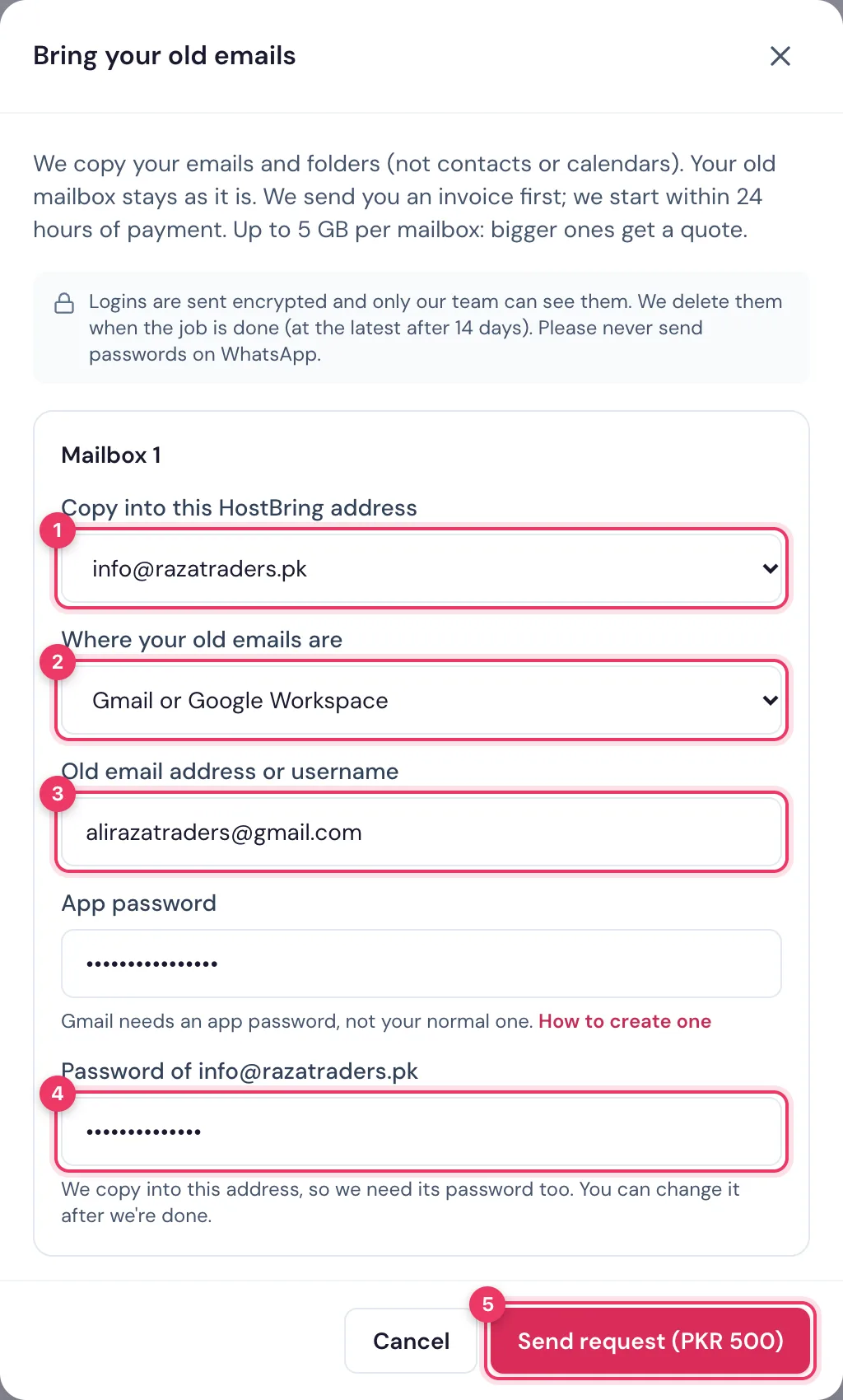
- For each old mailbox, choose: Copy into this HostBring address: where the emails should go. Where your old emails are: Gmail, Outlook, cPanel hosting or Other. For cPanel and Other, also type the old mail server, for example
mail.yourdomain.com. Old email address or username and its password. Gmail and Outlook need an app password, not your normal one: see Create a Gmail app password. Password of your HostBring address, so we can copy into it. - Moving more than one mailbox? Click Add another mailbox.
- Click Send request. A ticket opens, and we send you the invoice.
We start within 24 hours of payment. We copy once, then once more after you switch MX, so nothing is lost. We message you on the ticket when it's done.
Or copy them yourself (free)
Way 1: Thunderbird (works with almost any old provider)
This copies whole folders, including sent mail.
- Install Thunderbird on your computer.
- Add your old email account to Thunderbird (your old provider's IMAP settings).
- Add your new HostBring address too. See Set up Thunderbird.
- In the old account, open a folder (for example Inbox), select all messages (Ctrl+A or Cmd+A), right-click and choose Copy To → (your HostBring account) → Inbox.
- Repeat for Sent and any other folders you want to keep.
- Wait until Thunderbird finishes copying, then check the messages in HostBring webmail.
Way 2: Gmail or Google Workspace
Use Thunderbird as above. When you add your Google account, Thunderbird opens a Google sign-in window; sign in there. If your Google account uses 2-step verification and the sign-in window doesn't appear, create an App password in your Google Account settings and use it as the password.
Then copy the folders across exactly as in Way 1. Gmail "labels" appear as folders.
Way 3: Import files into HostBring webmail
If your old provider lets you export your email as .eml files or an .mbox file, you can import them in webmail.
- Export your mail from the old provider as
.emlor.mbox. - Log in at webmail.hostbring.com and open the folder you want to import into, for example Inbox.
- In the message list toolbar, open More (the … button) and choose Import.
- Choose the file and click Import.
Each upload can be up to 25 MB. For a large mailbox, Thunderbird (Way 1) is easier.
After copying
- Check a few old messages in HostBring webmail.
- Switch your MX record on your domain page (the last step in the wizard).
- Keep your old account for a few days, in case something arrives late.