
Once your domain is connected, create your email addresses in the client portal, such as info@yourbusiness.pk or your own name. Then send a test email to check that it works.
Open Create address
- Log in at my.hostbring.com. First time? Choose your password from the invite email: see Log in to the client portal.
- Click Email in the menu.
- In Get your email working, click Create address. You can also open Email addresses and click Create address there.
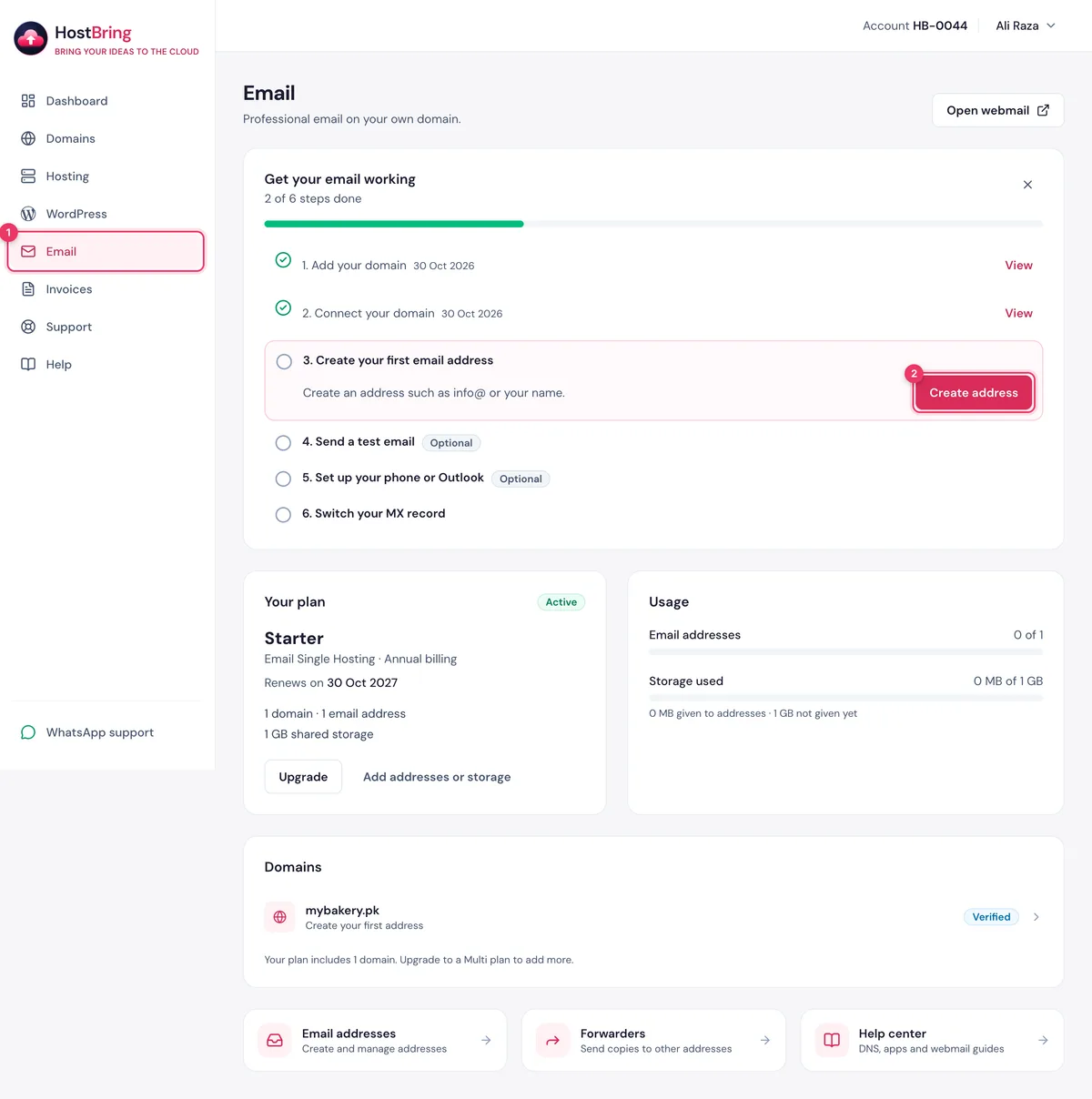
Fill in the address
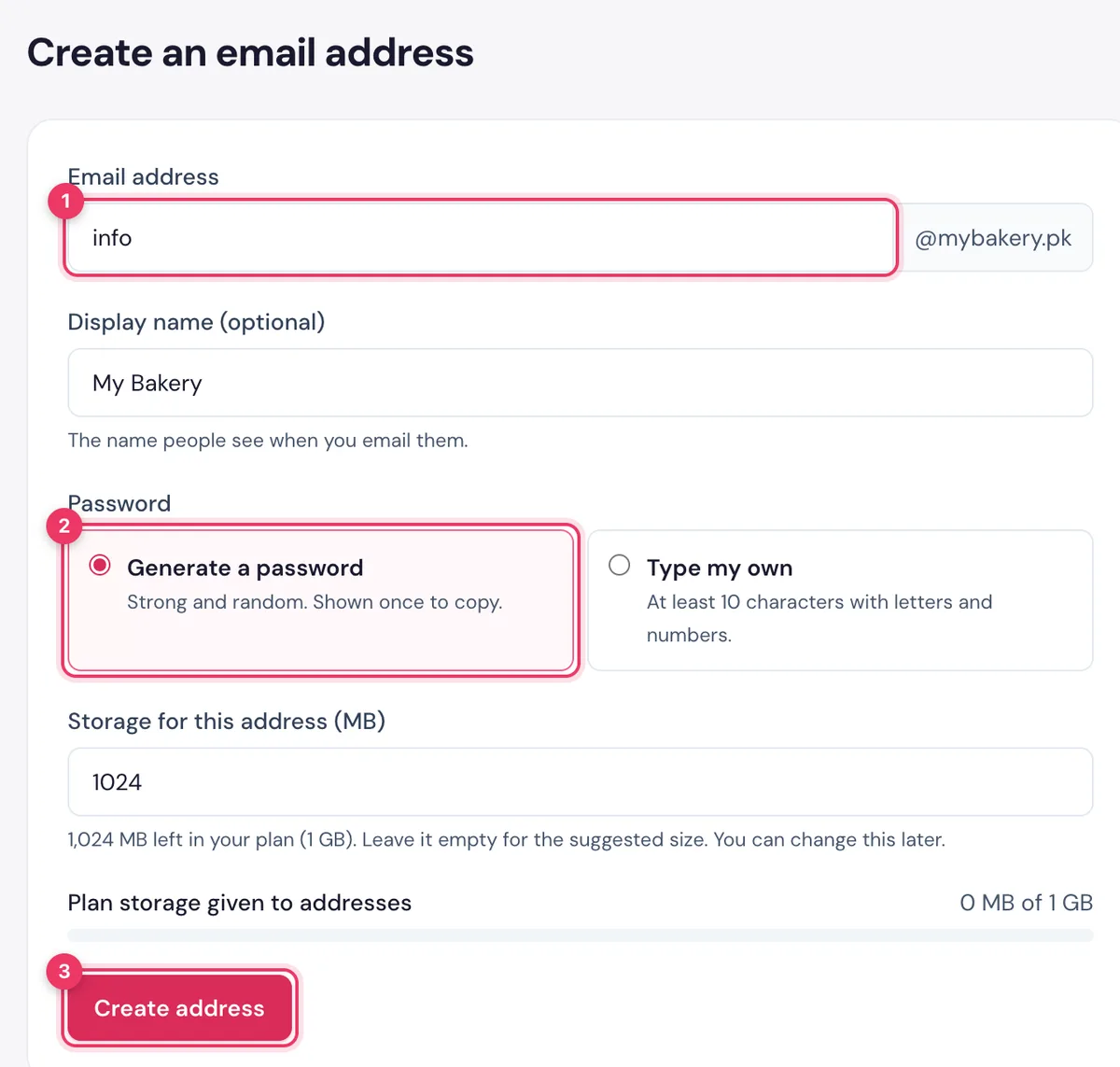
- Domain: pick your domain, if you have more than one.
- Email address: type the part before the @, for example
info,salesor your name. - Display name (optional): the name people see when you email them, for example your business name.
- Password: keep Generate a password for a strong one, or choose Type my own (at least 10 characters, with letters and numbers).
- Storage: leave it as it is. You can change it later.
- Click Create address.
Copy your password
Your new address and its password appear once. Copy the password now and keep it safe: you need it for webmail and for mail apps on your phone or computer.
- Open webmail opens your new inbox.
- Send on WhatsApp sends the address and the settings, without the password.
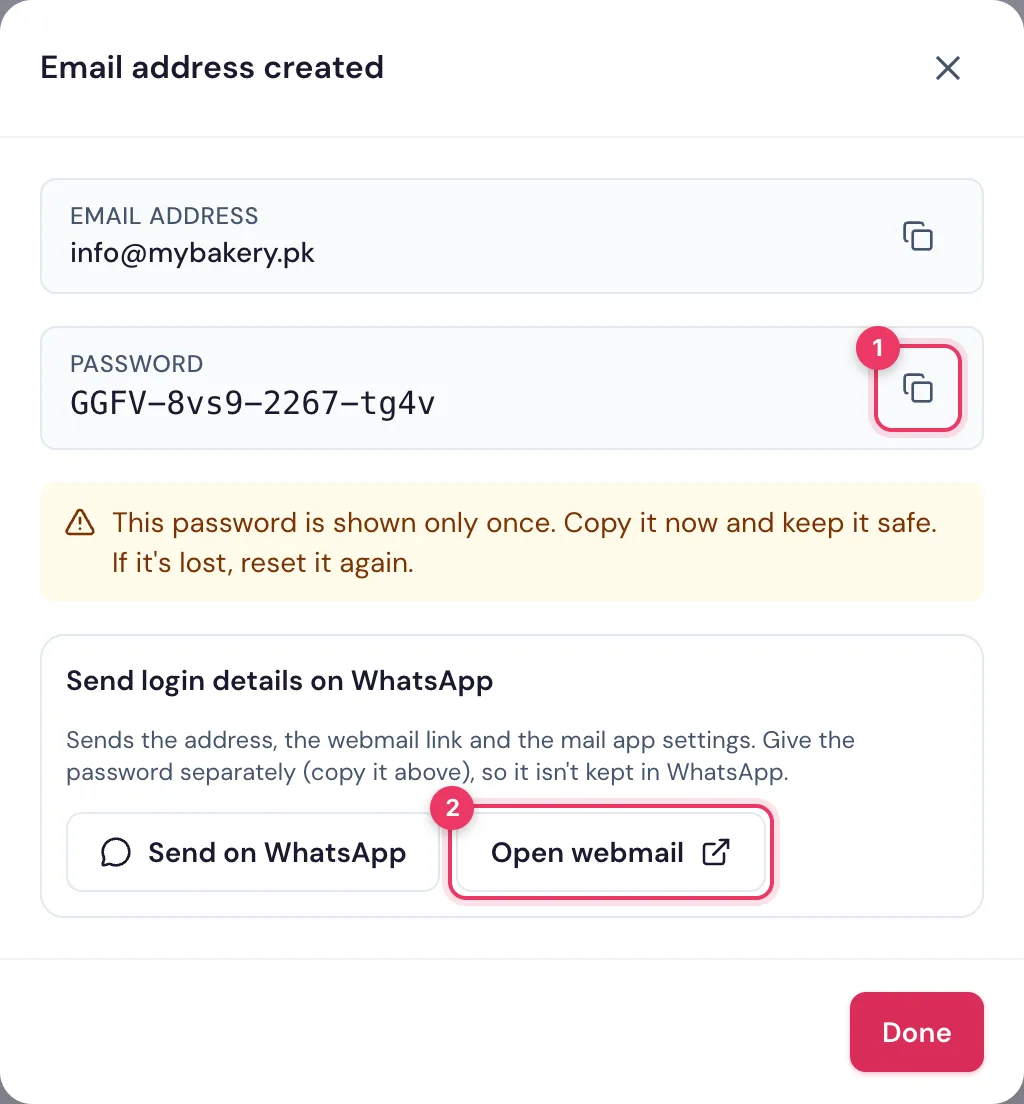
ImportantThe password is shown only once. If you lose it, open the address under Email addresses and click Reset password.
Send a test email
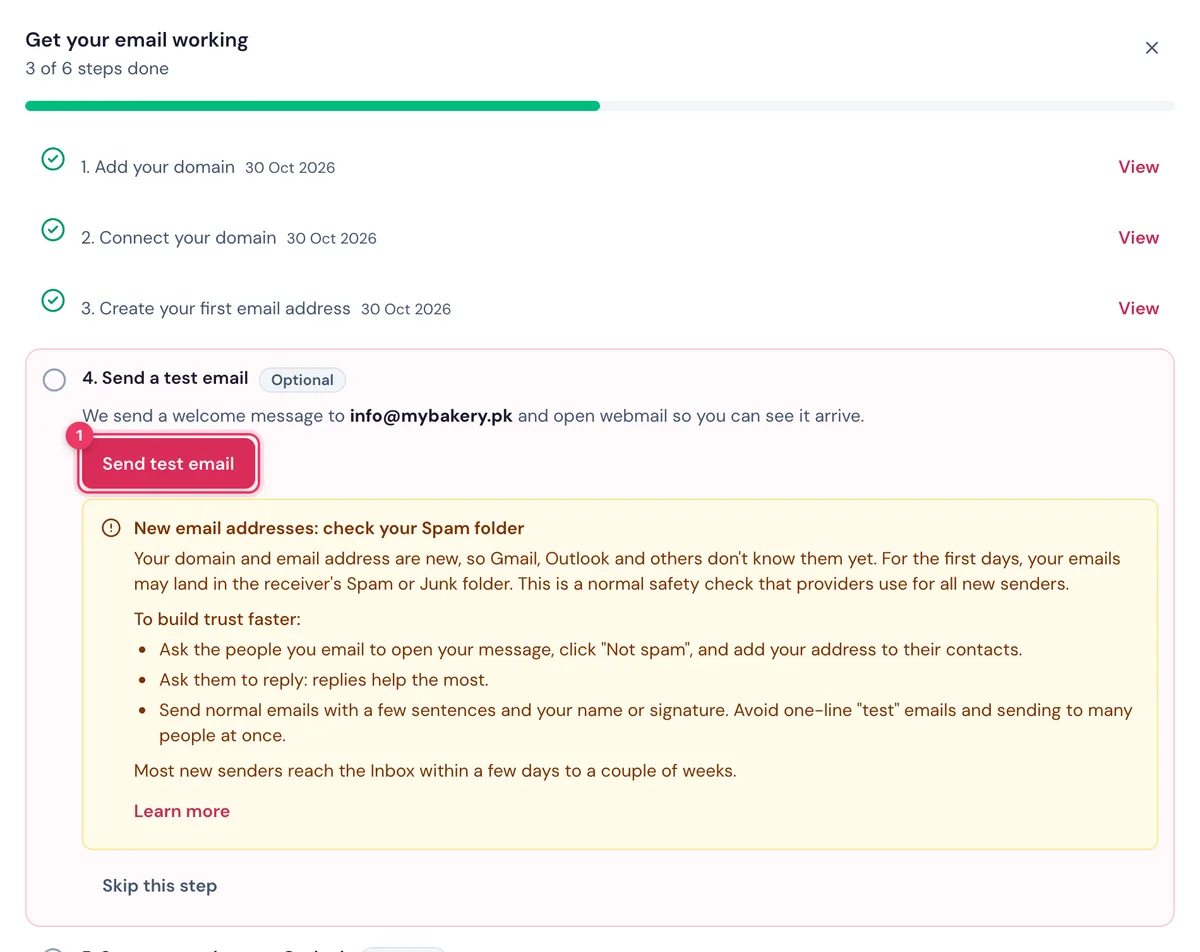
- Go back to Email. In Get your email working, find Send a test email and click Send test email.
- We send a welcome message to your new address and open webmail, so you can see it arrive.
- When it's there, click I received it.
To test both ways, send an email from webmail to your personal Gmail, then reply to it from Gmail.
TipOn a new domain, the first emails can land in the receiver's Spam folder. That's normal: see Why do my emails go to Spam?
Next: your phone or computer
Add your address to the mail app you already use: