
Use the Outlook app on iPhone or Android to read your HostBring email.
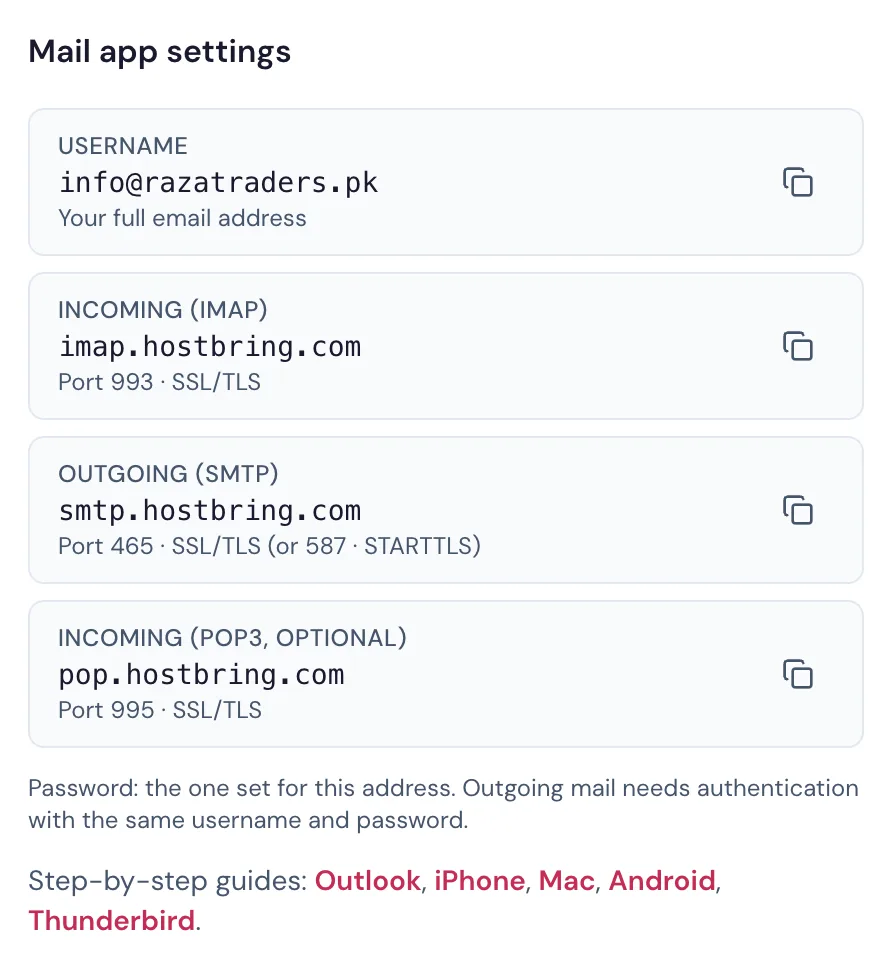
Every setting is also on your address page in the portal (Email → Email addresses, then the address), with copy buttons:
Add your account
- Open Outlook and go to Settings → Add account → Add email account.
- Type your full email address and tap Continue.
- If Outlook asks which provider, choose IMAP. If it shows Set up account manually, tap it.
- Turn on Advanced settings and fill in:
| Setting | Value |
|---|---|
| IMAP server | imap.hostbring.com, port 993, security SSL/TLS |
| SMTP server | smtp.hostbring.com, port 465, security SSL/TLS |
| Username | your full email address (for both servers) |
| Password | the password for that address (for both servers) |
- Tap the tick or Sign in.
TipOutgoing email needs the same username and password as incoming. If sending fails, check the SMTP fields.